
2. The CNC Editor
Find and Replace
The Find and Replace function allows you to quickly search and modify text in your CNC program.
2.6.1 Access Methods
The Find and Replace dialog can be opened via:
- Keyboard shortcut: CTRL + F
- Menu navigation: Edit → Find and Replace
2.6.2 Find Features
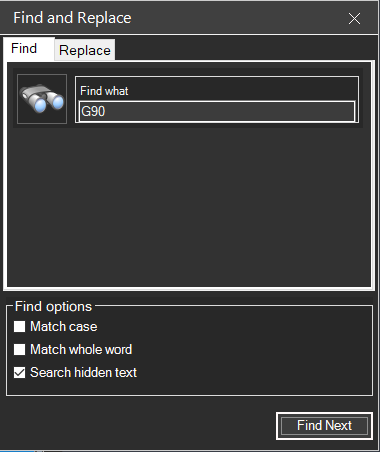
Users can search for text by entering it in the "Find what" textbox and clicking Find Next. The search includes three optional parameters:
Search Options
| Option | Description |
|---|---|
| Match case | If this option is checked, the search function will only find the text with the exact same case. For instance, "G90" and "g90" are treated as different. |
| Match whole word | If this option is checked, the search function will only find whole words that match your search string. This prevents partial matches like finding "G9" within "G90". |
| Search hidden text | If this option is checked, the search will include collapsed regions (see Code Regions). |
2.6.3 Replace Features
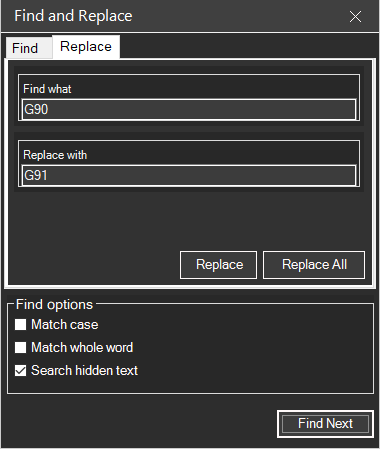
The Replace tab allows users to perform text substitution:
- Replace - Replace individual instances by clicking Find Next followed by Replace
- Replace All - Replace all occurrences using the Replace All button
Tip: Use "Replace All" with caution, especially when modifying G or M codes, as it might affect unintended parts of the program.
Related Sections: