
2. The CNC Editor
Pause Points
Pause points are small green dots in the editor margin that allow you to pause the simulation at specific points in the program.
Overview
Pause points are small green dots in the editor margin that are used to make a pause during the simulation.
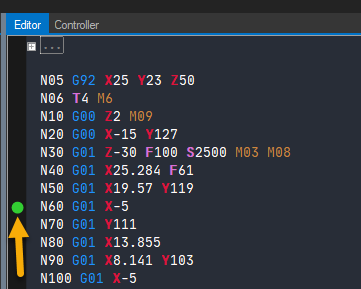
Setting Pause Points
You can add or remove pause points through a simple clicking mechanism. The process involves clicking on the margin area next to the code block where you want the simulation to pause.
Resuming Simulation
Once the simulation reaches a pause point, you have three options to continue:
- Play button - Click the play button to resume simulation
- Fast forward button - Click to advance quickly
- Single-step button - Click to execute one instruction at a time
Using Pause Points
Pause points are useful for:
- Debugging CNC programs
- Verifying tool position at specific points
- Step-by-step analysis of complex operations
- Training and demonstration
Tip: The visual indicator (green dots in the margin) makes pause points easy to identify within the editor interface during CNC code development and testing.