
CNC Code and older PCs: how we made 3D smoother (for schools too)
[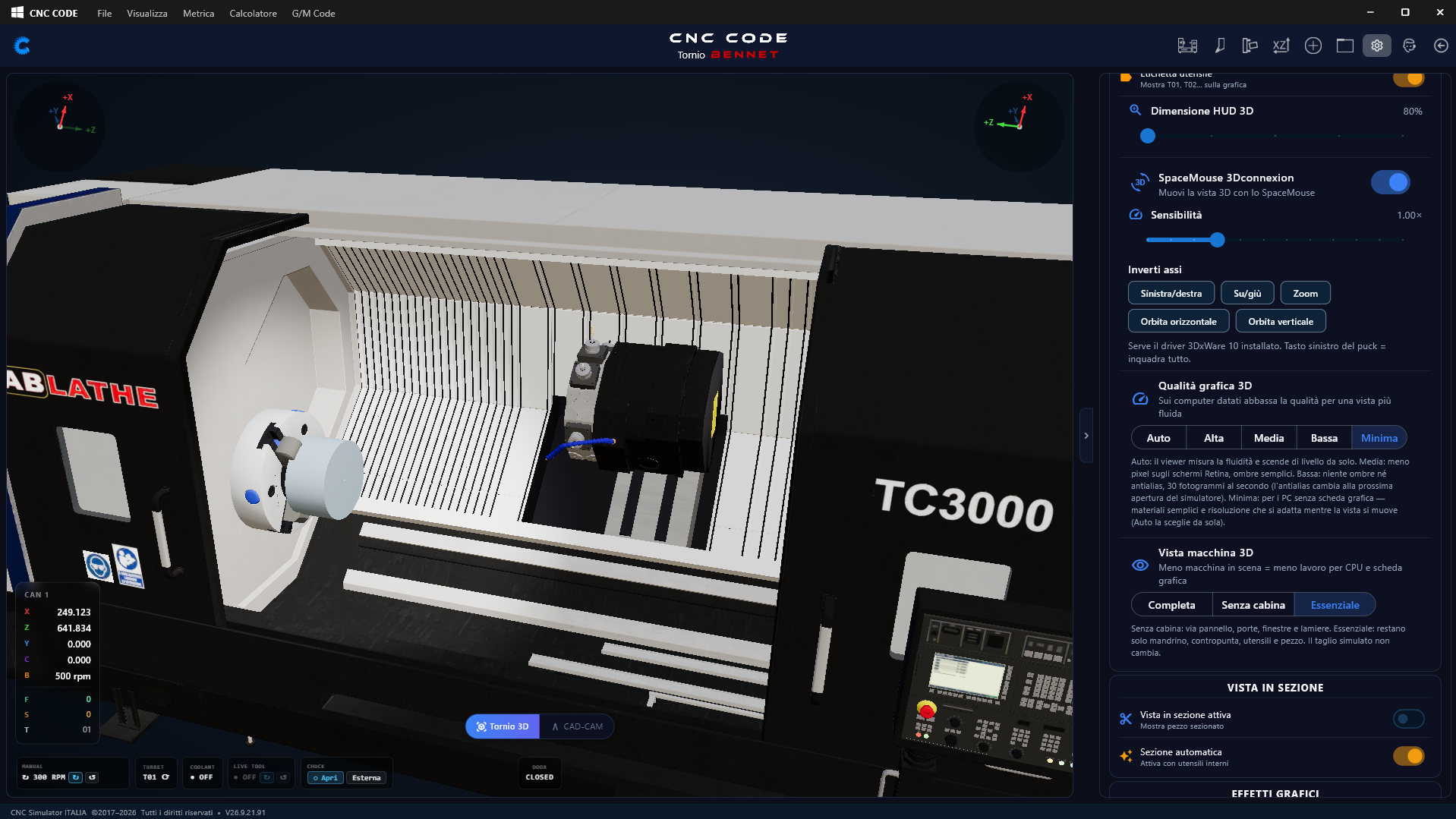
Screenshot 2026-09-21 100633.png 812.41 KB](https://cncsimulator.it/storage/posts/content/bk0NzvRi4i3rB9wRV7dYIFMZ85lvVk8DmVkSKBbf.png) A customer wrote to us: on his computer, the lathe's 3D view was stuttering. Not a broken computer, simply a PC with a few years on its shoulders: an Intel i3 with Windows 10. The type of machine found in many workshops and in almost all school labs.
For us, this is a serious problem. A CNC simulator needs to work for people who are learning, and those who are learning often work on exactly those computers. So we set out to find the cause, and in this article we'll tell you what we found and what we changed.
Rule number one: measure, don't guess
On our development computer, the 3D has always run fine, so testing it there was pointless. Instead, we recreated the conditions of an older PC in our lab:
- no graphics card: on old PCs, Windows often doesn't use it for 3D (drivers too outdated) and the processor handles all the drawing, much more slowly;
- only two processor "cores", like an i3.
Then we precisely measured how many frames per second the 3D could draw, and where the computer's workload was going. More frames per second means smoother motion: under 10 you see stuttering, above 20 the motion is fluid.
What we found
The 3D itself wasn't "too heavy." There were a few specific wastes of resources, which go unnoticed on a modern PC but add up on an older one.
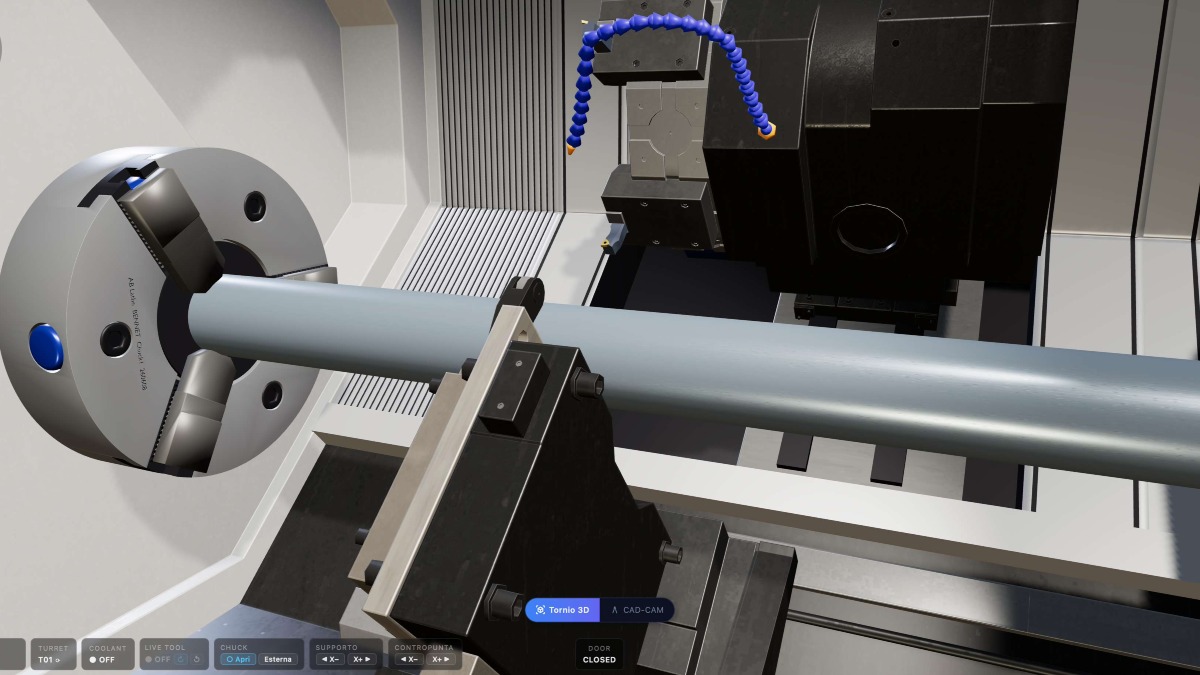
1. A piece of glass that doubled the workload. One of the machine's glass panels (the inspection window) used a "realistic" transparency effect. To draw it, the program redrew the entire machine twice every frame. We replaced it with a normal transparent glass, which looks identical to the eye. Result: double the frame rate, on any computer.
2. Two hidden 3D engines working behind the scenes. On the home screen there are animated previews of the lathe and the milling machine. When the simulator was opened, those previews stayed active in the background, continuing to run at maximum quality even though nobody was looking at them. On an older PC, they ate up most of the processor. Now they stop as soon as you open the simulator (and only the one you're viewing keeps running), and they resume when you go back to the Home screen.
3. Auto mode always started from the highest level. The "3D graphics quality" setting in automatic mode always started at "High" and stepped down one level at a time while measuring. Now, if the computer doesn't have a usable graphics card, it recognizes this immediately and starts directly at the lightest level.
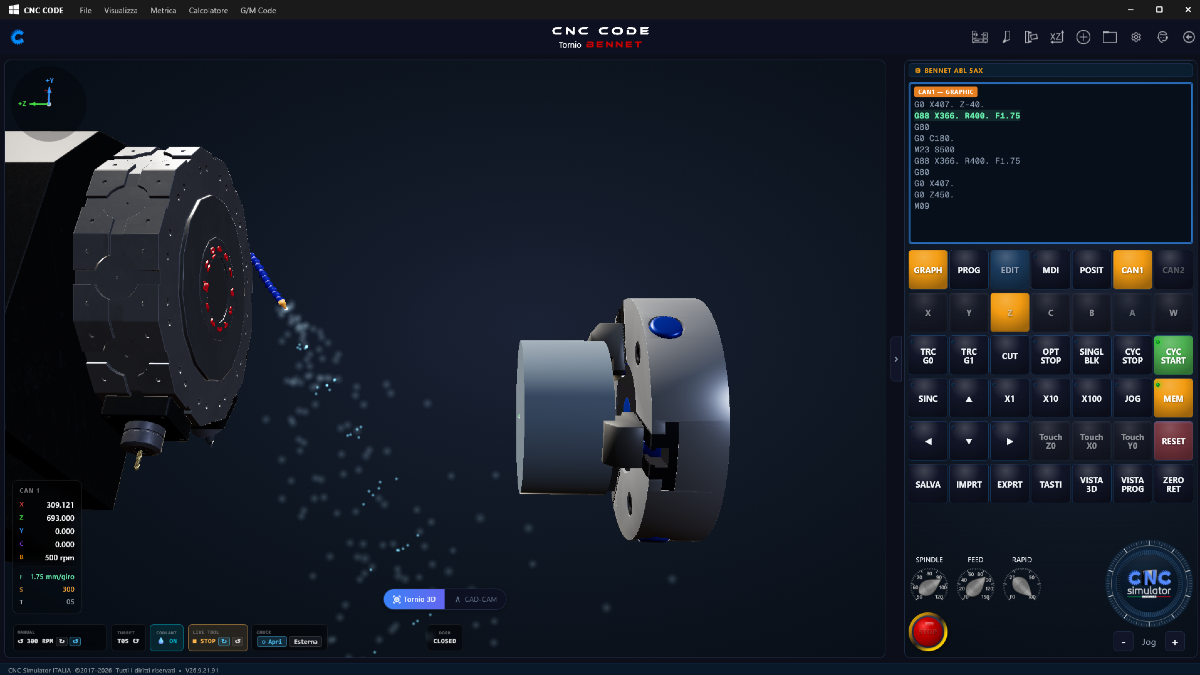
4. The screen redrawing for nothing. A small blinking emergency warning was causing the entire lathe screen to redraw twice per second, even when there was no emergency at all. Now it only blinks when needed. With the machine stopped, the workload the interface demands from the processor dropped by about eightfold.
The new "Minimal" level
Once we fixed the waste, we added one more step to the graphics quality settings, designed specifically for PCs without a graphics card:
- simpler materials: the metal loses a bit of its reflections, but shapes, colors, and machining operations stay the same;
- adaptive resolution: while the view is moving, the 3D is drawn slightly less sharply to stay smooth; as soon as you stop, it goes back to being crisp, so the part is easy to read;
- maximum 20 frames per second: enough to follow the machining process well, and it leaves breathing room for the rest of the program (buttons, dimensions, program list).
Anyone with a computer that has a good graphics card won't notice anything: for them, everything stays exactly as before.
The numbers
Lab measurements, simulating a PC without a graphics card and giving the 3D only two cores, frames per second (higher = smoother):
Situation | Before | After |
|---|---|---|
Full machine, camera moving | about 6 | 12–14 |
Essential view, camera moving | about 8 | up to 20 |
While running a program | about 4 | about 15 |
These are numbers measured under repeatable conditions, not on the customer's actual PC: every computer is different. But the direction is clear, and the improvement applies to modern PCs too, because the waste we removed was there for everyone.
What you need to do
Nothing. Starting with the next update, the default setting is Auto, which automatically chooses the right level for your computer. If you want to choose manually: Settings → 3D graphics quality (Auto, High, Medium, Low, Minimal). On very old PCs, the "Essential" machine view also helps, which hides the cabin and leaves only the spindle, turret, and workpiece visible.
What's next?
We're not done yet. The measurements have already pointed us to the next thing to improve: on a computer with only two cores, the 3D and the rest of the interface compete for the same processor, and we're working to reduce that burden as well.
The goal remains the same: CNC Code needs to work well in schools and workshops, on the computers that actually exist, not just on new ones.
If you too have a PC where the 3D isn't performing as it should, write to us through the app's support: you'll be helping us improve it for everyone.