
Teacher Guide — CNC Code Multi-License Management
Before you start
Your Institute has activated a CNC Code multi-license package. Our team has already configured everything: your account has been designated as the Responsible Teacher for license management for your school. You will receive an email with your login credentials.
Step 1 — Access the site
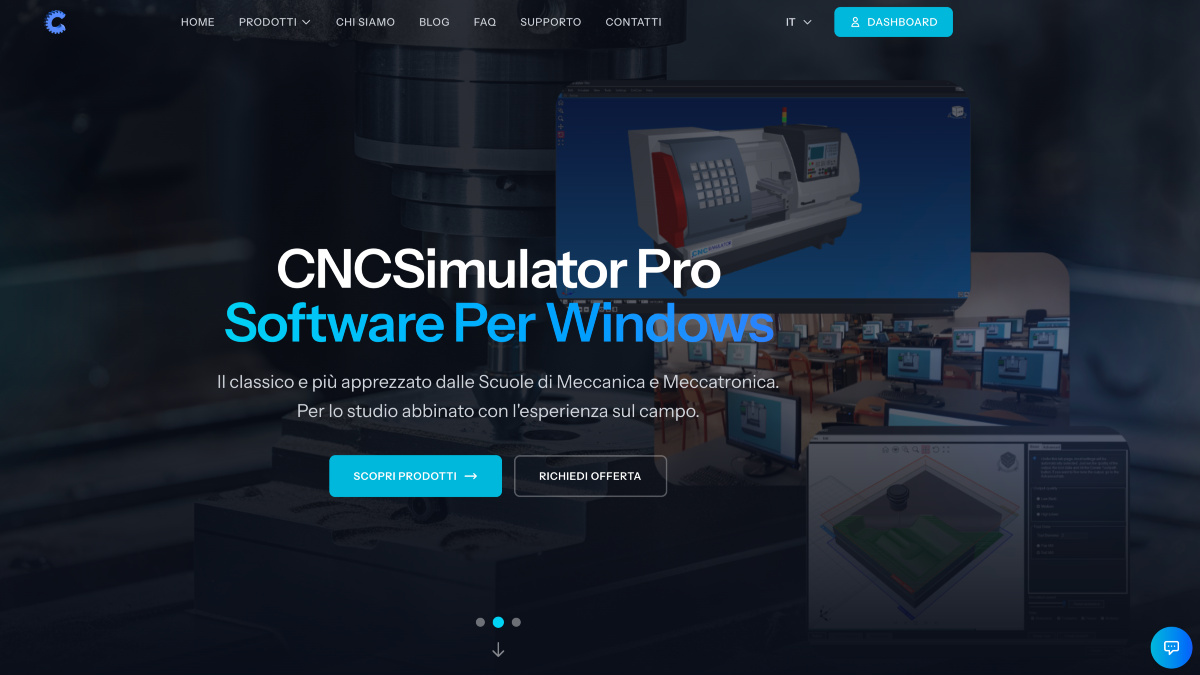
Go to cncsimulator.it and click on Login at the top right.
- Do you already have an account with us? Log in with your usual email and password — you'll find the management panel directly in your dashboard.
- Is this your first access? Use the credentials we sent you via email. We recommend changing your password on first access from the Profile and Settings section.
Step 2 — Open the management panel
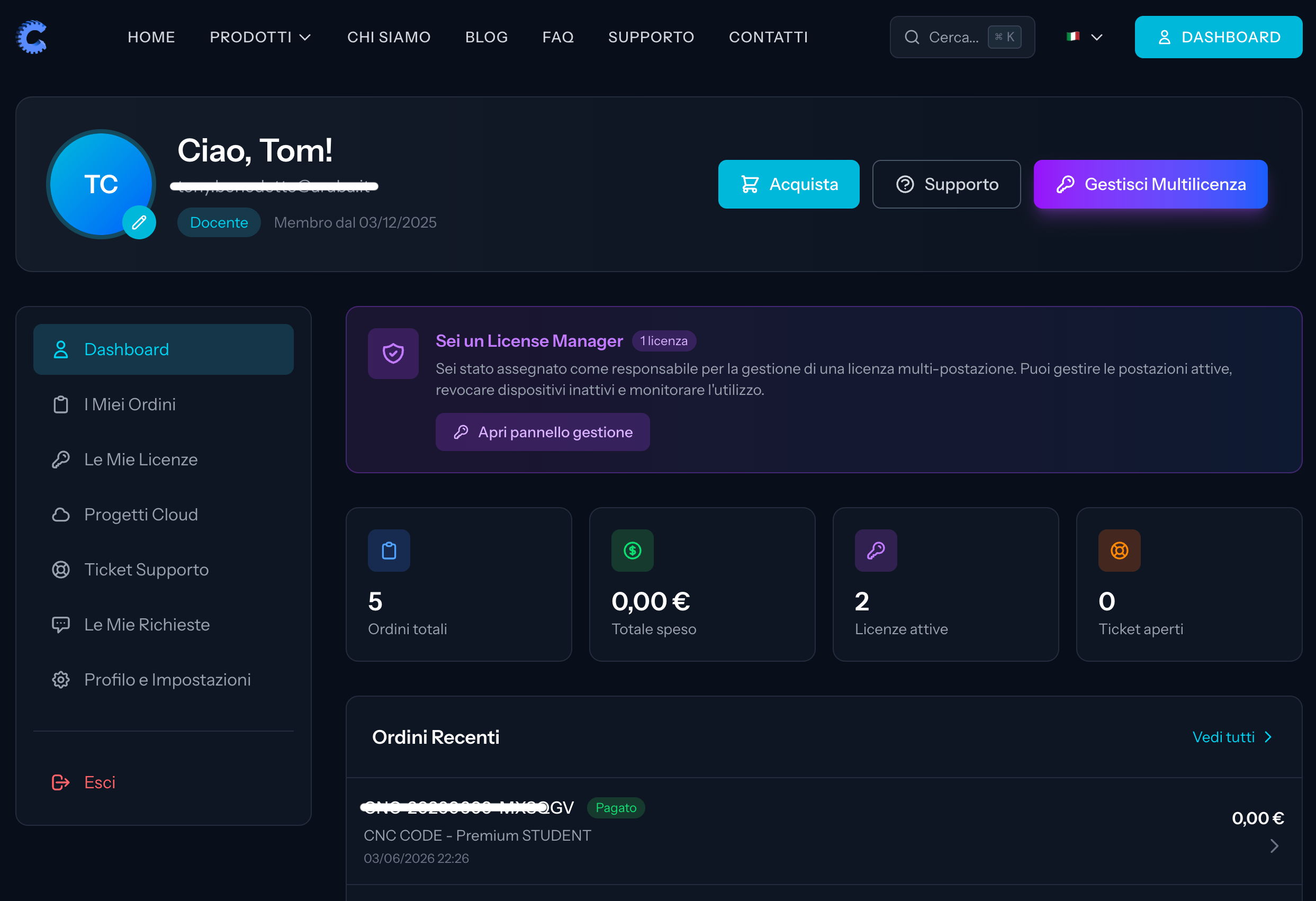
Once logged in, click on Dashboard at the top right.
In your dashboard you'll find a purple section that says "You are a License Manager" — that's where you manage your Institute's licenses.
Click on "Manage Multi-License".
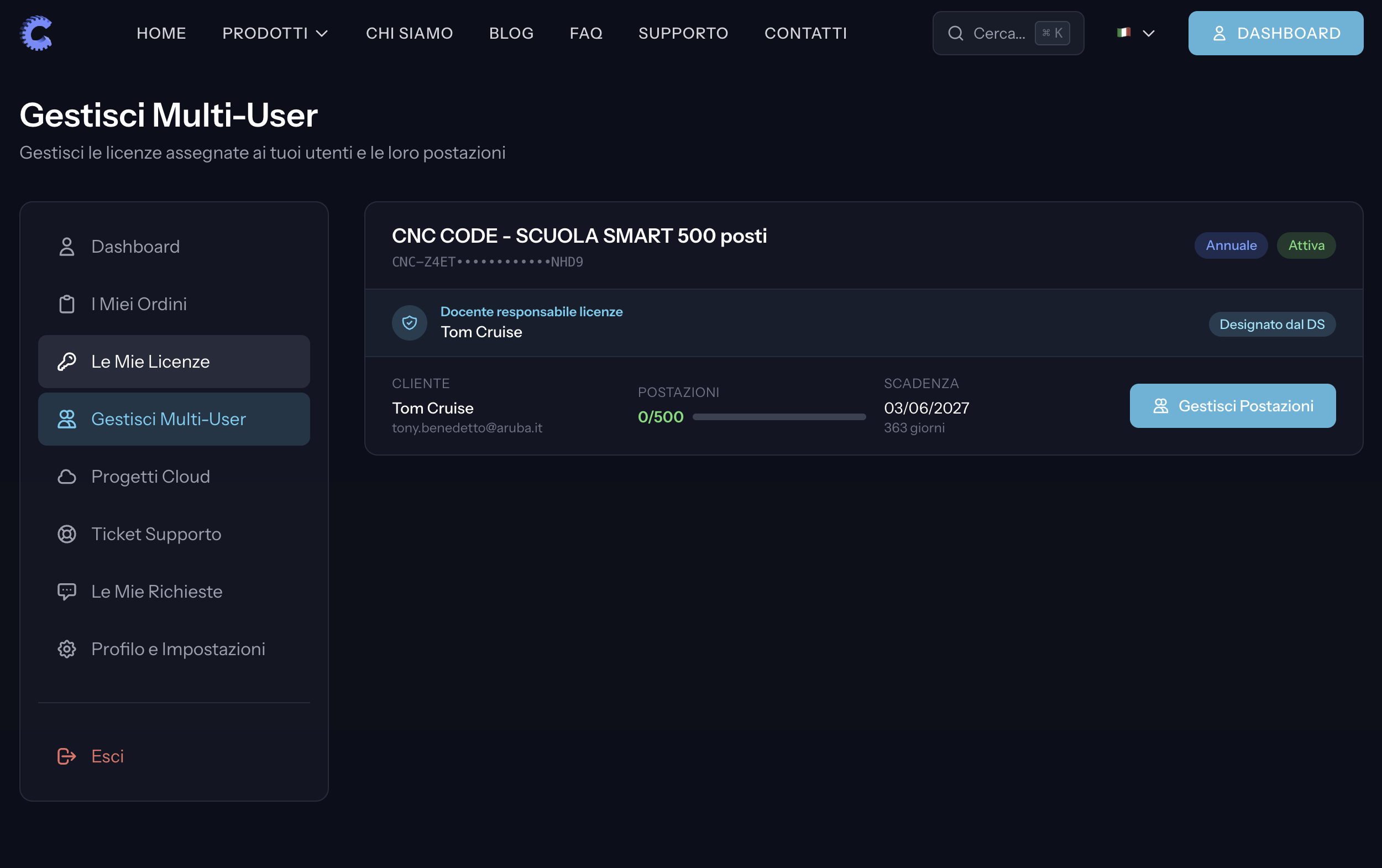
Step 3 — View your license
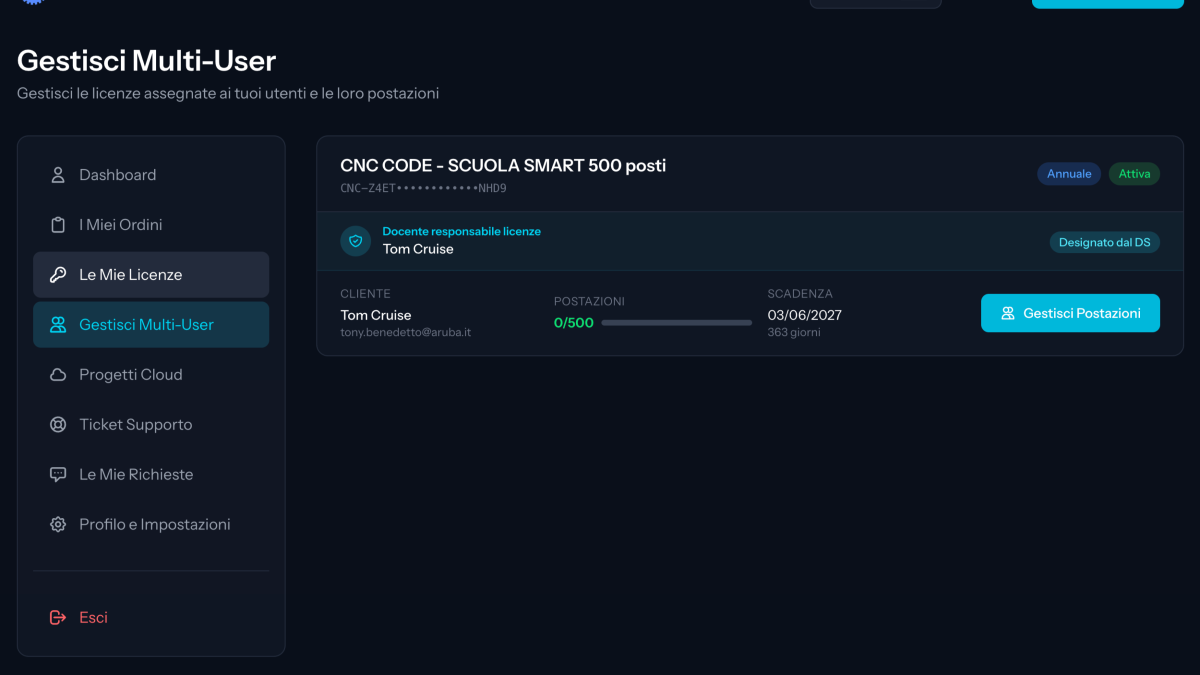
You'll see the license assigned to your school with all the information:
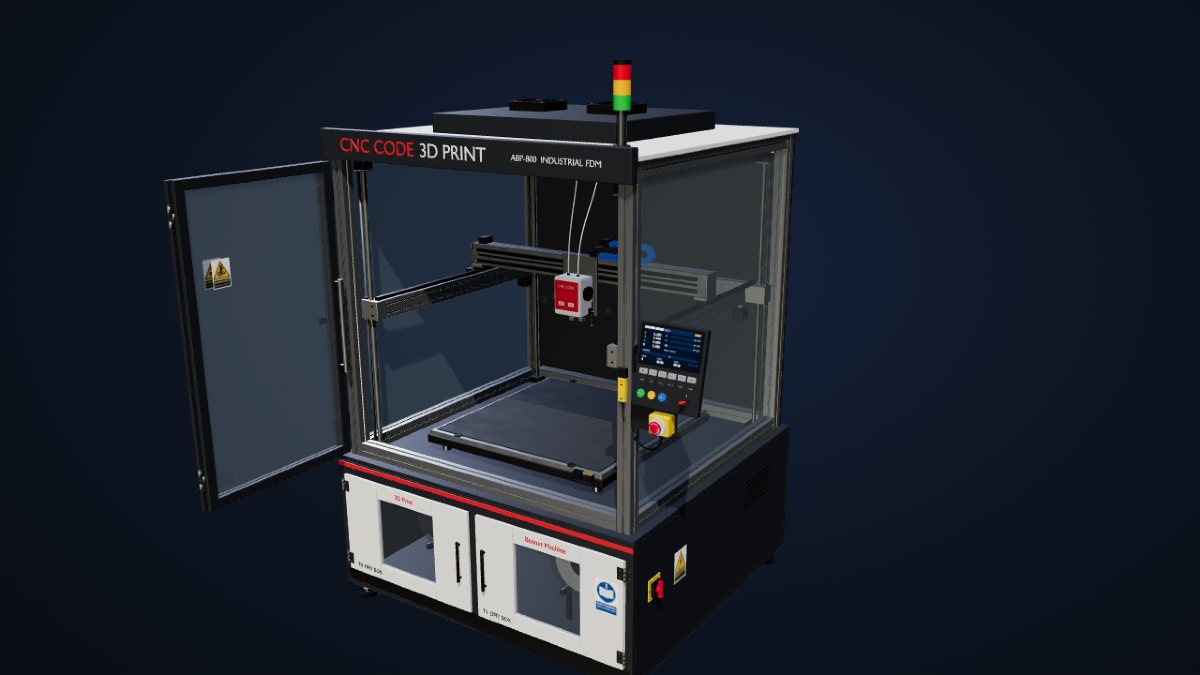
- Product name — CNC Code
- Available seats — e.g. 500/500
- Expiration — validity end date
- Your name as the designated Responsible Teacher
Click on "Manage Seats" to enter the actual management panel.
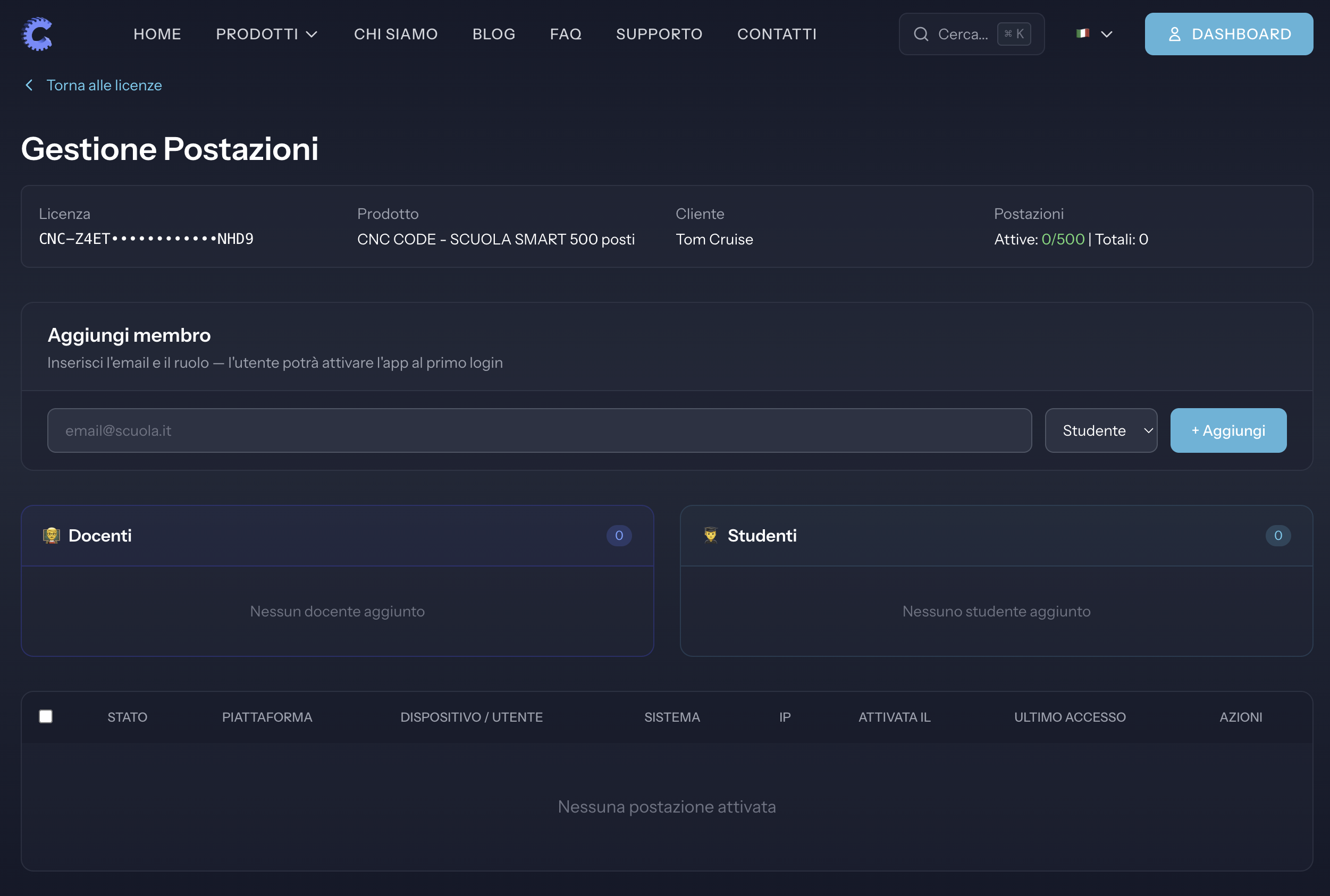
Step 4 — Add your students and colleagues
On this page you'll find two side-by-side sections:
- 👨🏫 Teachers — for your colleagues who need to access the app
- 👨🎓 Students — for all course students
To add a person:
- Enter their email in the field at the top
- Select the role (Student or Teacher) from the dropdown menu
- Click "+ Add"
Repeat for each person to enable.
Tip: you don't need to add everyone at once — you can return to this page whenever you want and add new members during the year.
Step 5 — Students download the app
Once the email is added, the student or teacher simply needs to:
- Download CNC Code from the App Store (iPhone) or Google Play (Android)
- Open the app and Login with the same email you entered
- The license activates automatically — no code to enter
Real-time monitoring
On the management page you can always see:
- ✅ App activated — who has already logged in and is using the app
- 🟡 Waiting for login — who has been added but hasn't downloaded the app yet
If a student can't access or you need to revoke a license (e.g. student leaving school), you can do so at any time by clicking the X next to their name.
Need help?
For any issues write to info@cncsimulator.it or open a ticket from the Support section of the site. We're here to help you.